
Make your Files easier for everyone to use.
Turn PDFs, images, and more into responsive, editable, screen reader-friendly web pages. Help people find what they need, improve accessibility, and publish on FileToWeb or through your website.
Built-in WCAG 2.2 AA checks and review workflows to support your ADA compliance efforts.
Start with 10 free credits. No credit card required.
See what your files can become.
Original PDF
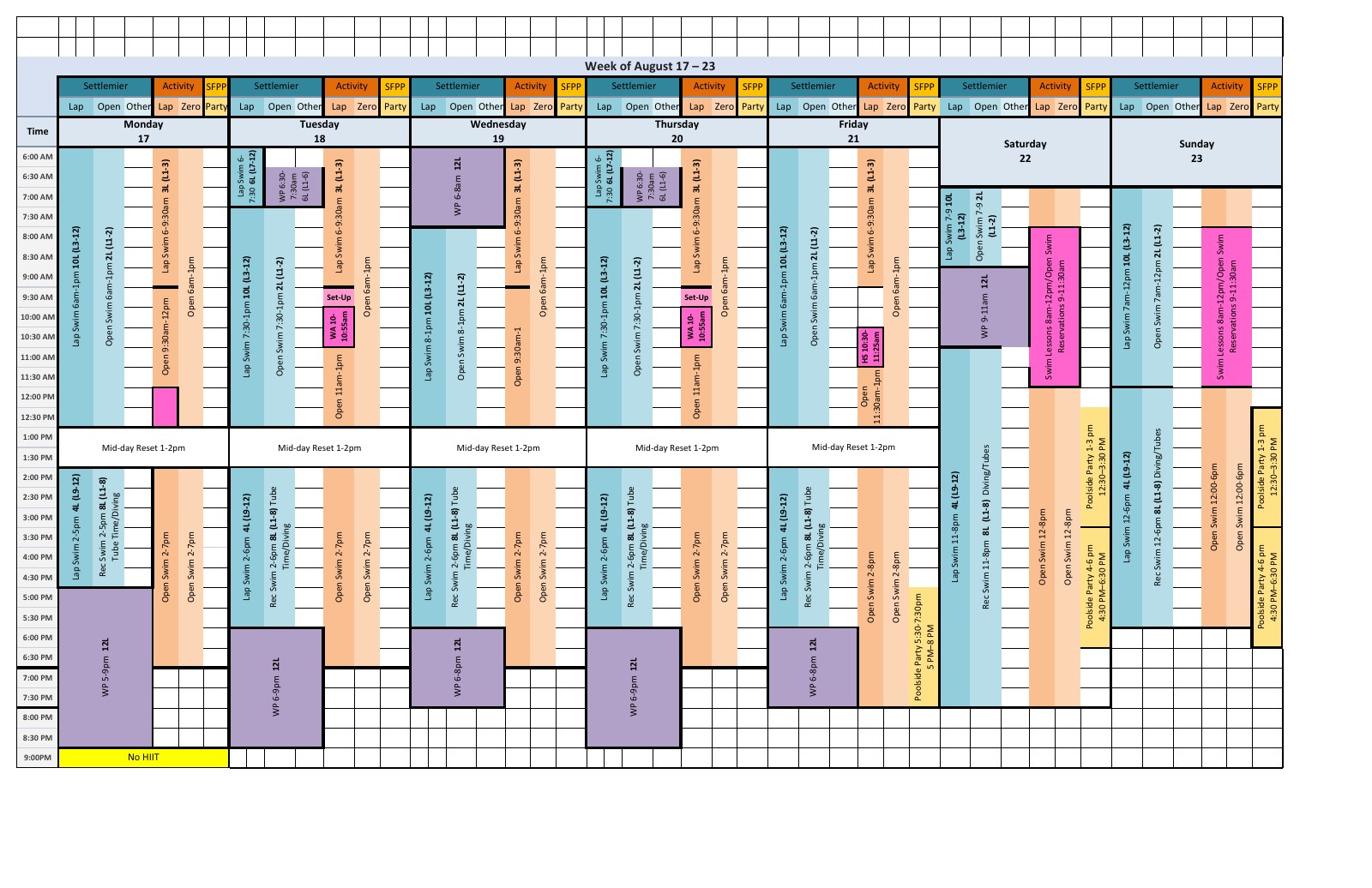
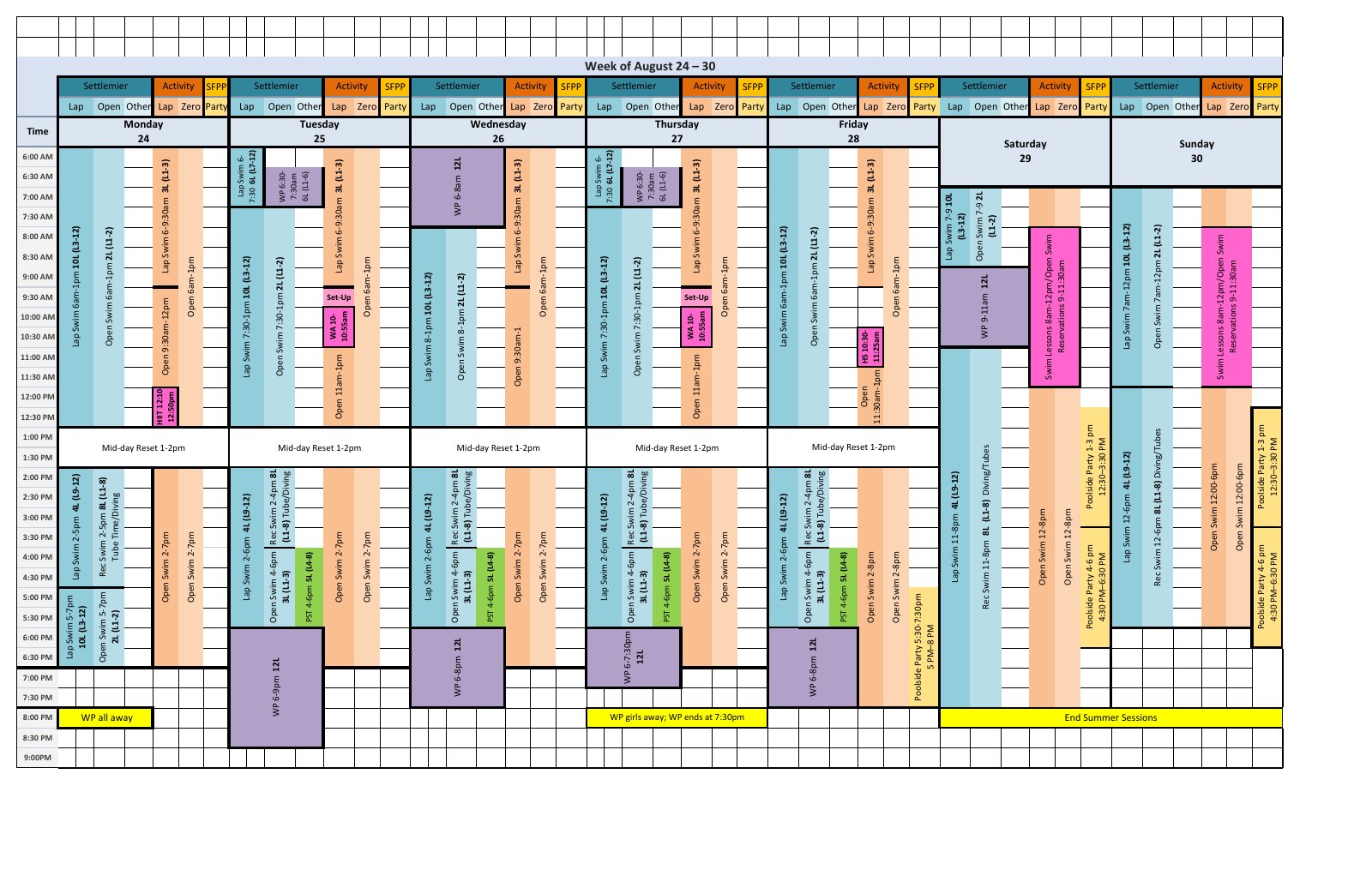
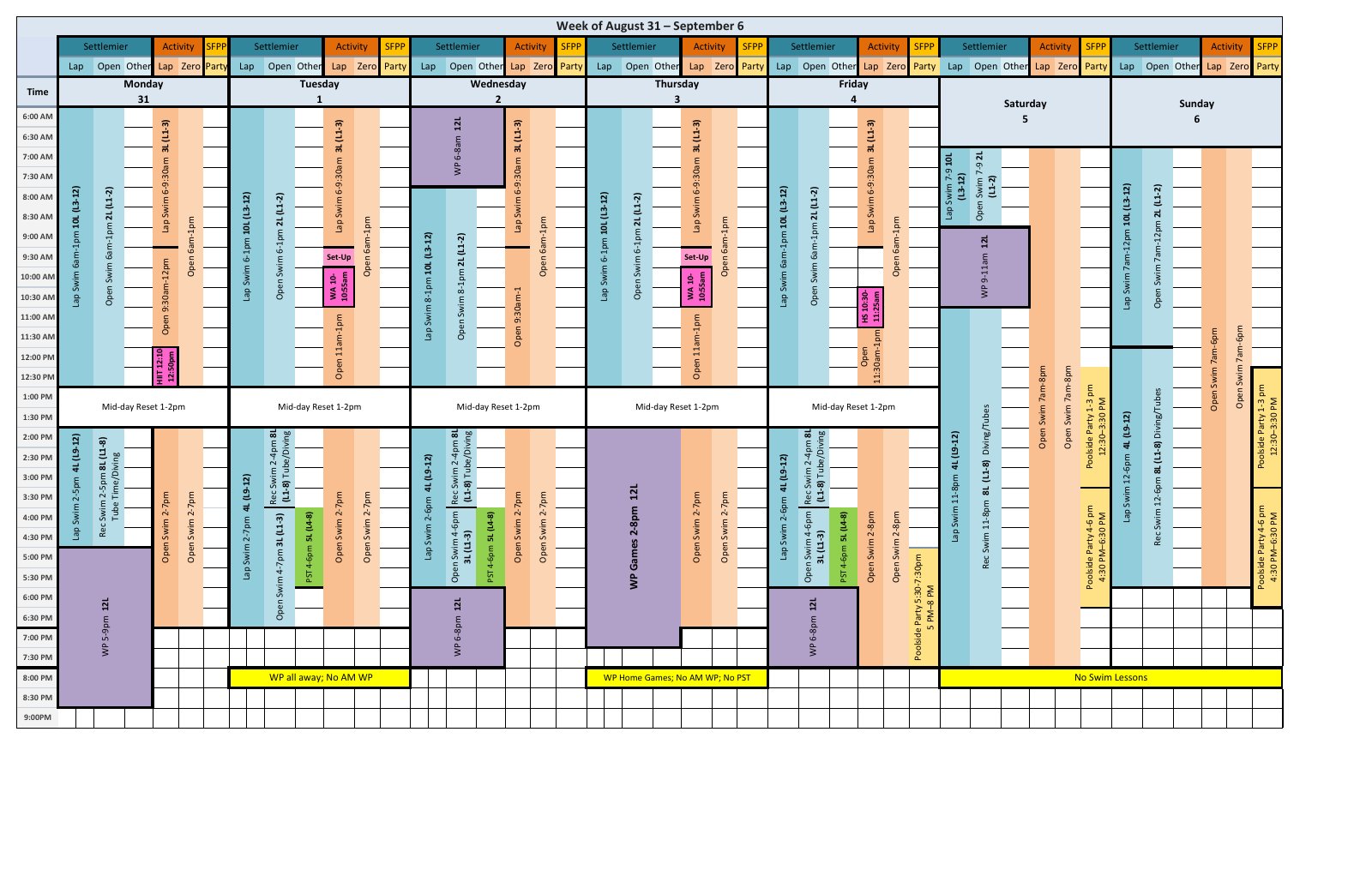

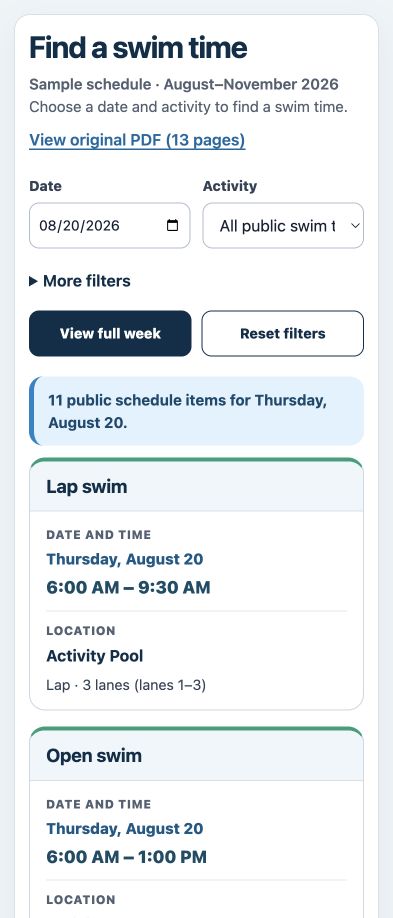
 FileToWeb
Web page
Works with
 PDF
PDF Word
Word PowerPoint
 Excel
Excel Images
 Google Docs
 TXT / Markdown
Easier to read. Easier to update. Easier to share.
Read on any screen
Responsive pages adapt to phones, tablets, and desktops so readers can focus on the content.
Keep improving the content
Edit text and layout, review accessibility findings, and save new versions in FileToWeb Studio.
Choose where it lives
Share a FileToWeb link, export HTML, or connect a supported website publishing workflow.
Beautiful on every screen.


From PDF to a web experience in three steps.
Upload your PDF
Choose its visibility and review the estimated credit range before conversion.
Explore document conversion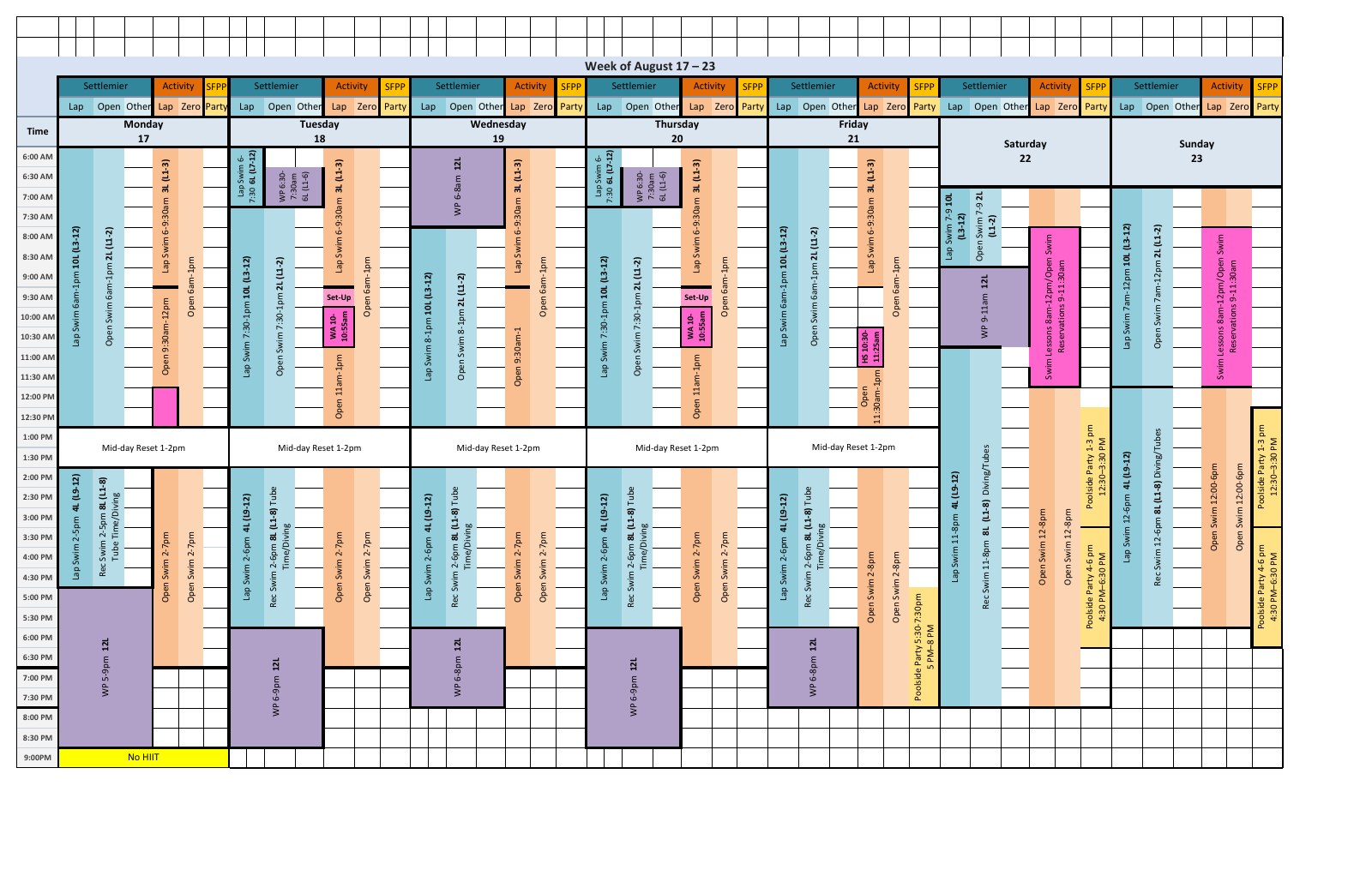
Review and refine
Compare the result with your source. Edit in Studio, run accessibility checks, and save changes.
Explore FileToWeb Studio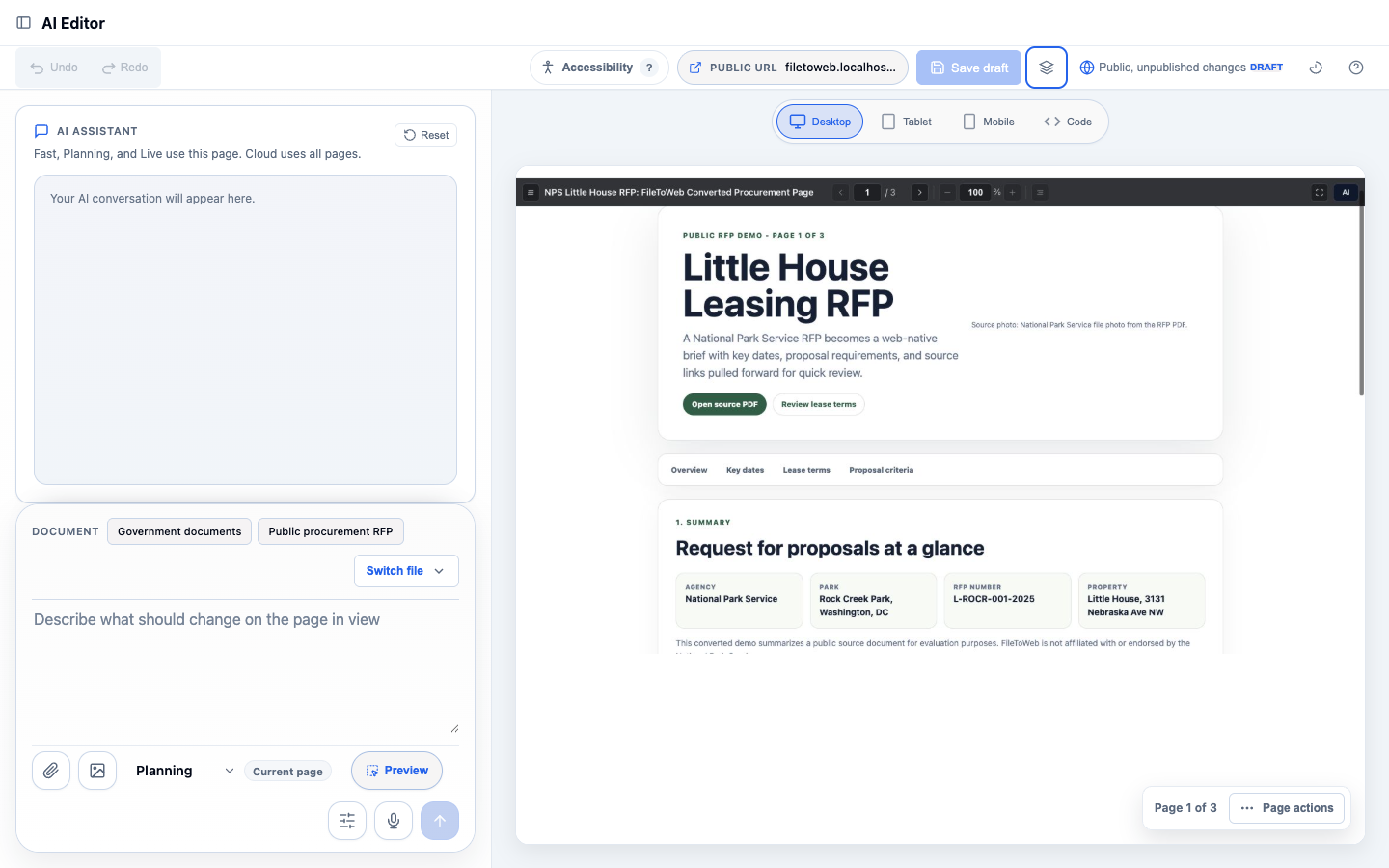
Share or publish
Use a FileToWeb link, export HTML, or bring the content into your website’s publishing workflow.
Explore publishing options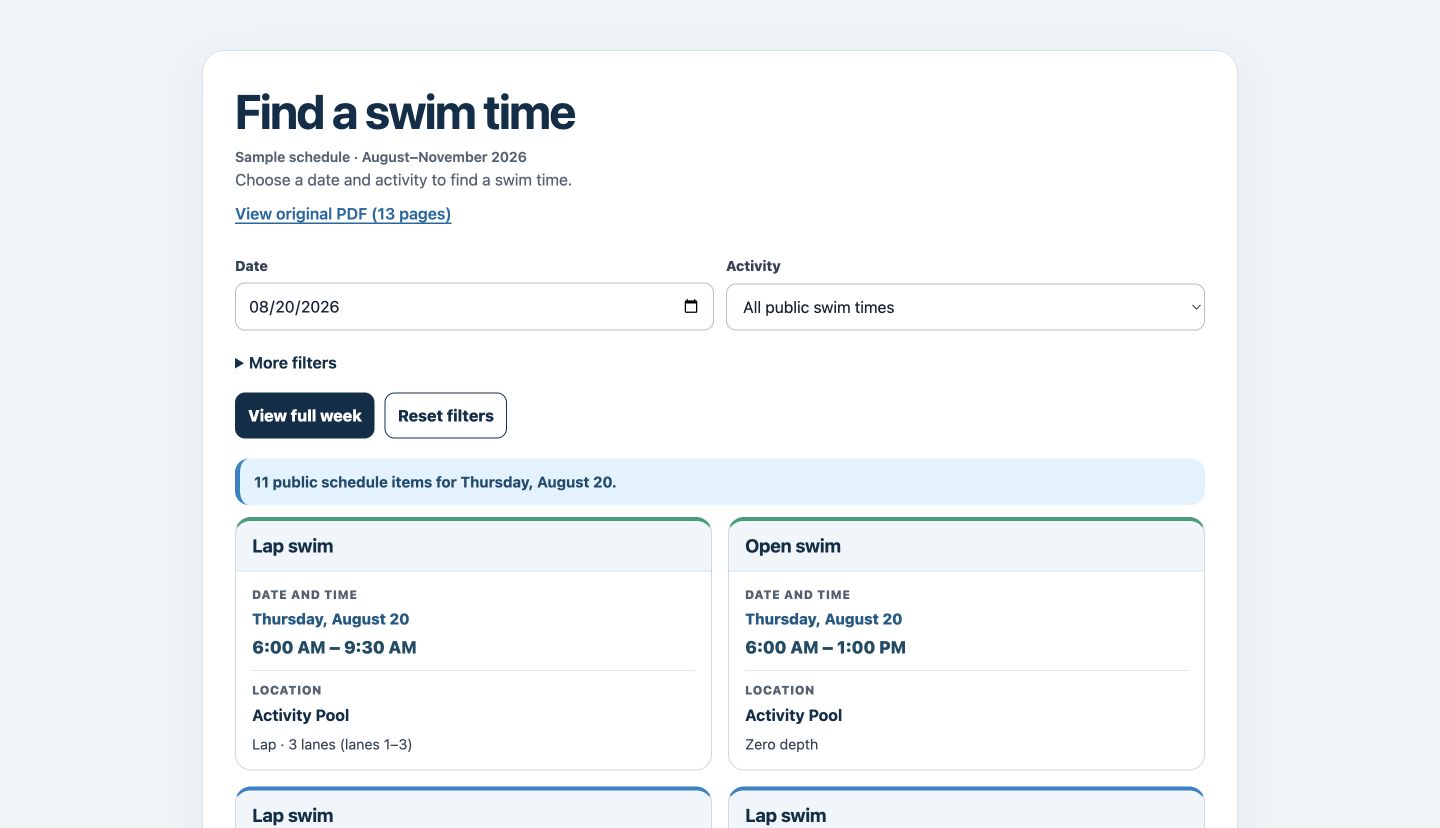
Need to review privately? Select Private before uploading.
See the step-by-step guideTurn accessibility findings into improvements.
Automated checks support your accessibility and ADA compliance work. Human review is still needed to evaluate the complete experience.
Explore the accessibility workflowFind issues
Check headings, labels, contrast, and other automatically testable criteria.
Review the content
Inspect content structure, image descriptions, tables, and reading order.
Save and recheck
Save changes and revisit the checks as your content evolves.
Our mission
Access should be the default.
We are building a better path from static files to information that people can independently access, understand, and use.
Read our missionWhy now
Essential information is still locked in static files. AI-assisted conversion and human review give teams a practical way to make it easier to read, navigate, and keep up to date.
A publishing path for your team.
Government and public agencies
Make schedules, agendas, reports, and service information easier for residents to use.
Explore government accessibilityWordPress and CMS teams
Bring reviewed document content into the website your team already manages.
Explore WordPress & CMS publishingExamples made with FileToWeb
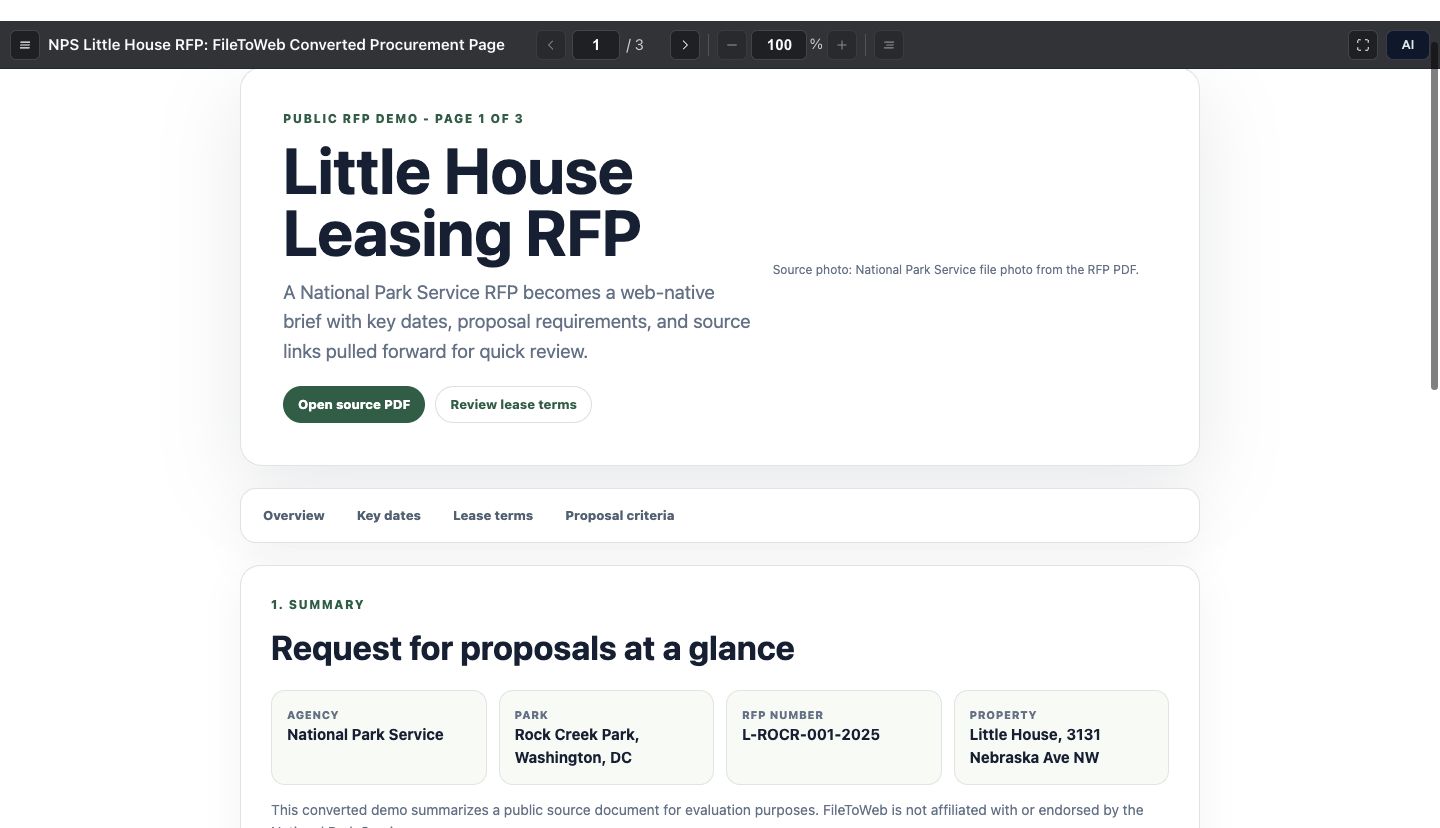
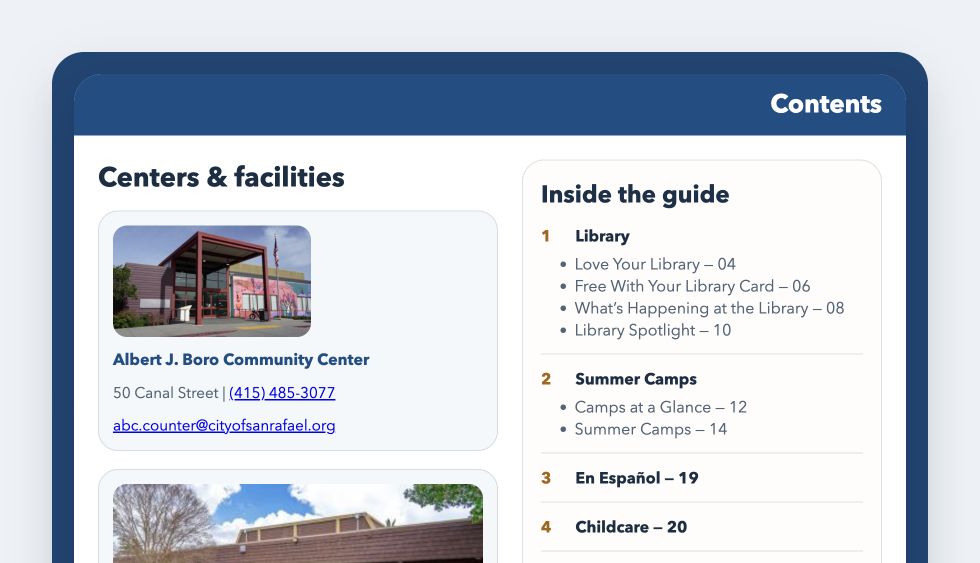
See FileToWeb in action
Watch how FileToWeb turns documents into web pages, then explore editing and real examples.

Start free. Add capacity as you grow.
New accounts receive 10 free credits. See an estimated credit range before converting; usage depends on the document and AI processing.
How credits workFree
For trying FileToWeb
- 30 credits for .edu accounts
- Advanced FileToWeb Studio access
- Buy a plan when you need more
Pro
For individuals who publish regularly
- 100 credits per month
- One-month credit rollover
- Credit packs for extra volume
- Priority processing
Business
For teams and integrated publishing workflows
- 500 credits per month
- Team workspace with pooled credits
- API keys for CMS and custom integrations
- One-month credit rollover
Enterprise
For custom deployments
- Custom MSA and SLA
- SSO and SAML options
- Dedicated support
- Custom processing pipelines
Frequently asked questions
What you can create, how publishing works, and what to expect.
What is FileToWeb?
FileToWeb is a platform for creating, improving, and maintaining accessible web content. Turn PDFs, images, videos, and many other files into responsive, editable web pages, improve them in FileToWeb Studio, and publish through a FileToWeb link or your website.
What file types can I turn into web pages?
FileToWeb supports PDFs, Word, PowerPoint, Excel, Google Docs, text and Markdown files; PNG, JPEG, and WebP images; and MP4, MOV, WebM, and M4V videos. You can also create content from a blank page or a template.
How does FileToWeb help with screen reader and mobile accessibility?
FileToWeb creates responsive HTML that can reflow on phones and support screen reader navigation. Its editing and review tools help improve headings, reading order, image descriptions, tables, and labels. Built-in WCAG 2.2 AA checks find automatically testable issues. Human review and feedback from people with disabilities are essential to identifying barriers, improving usability, and supporting ongoing accessibility compliance.
How does FileToWeb support ADA compliance and WCAG requirements?
FileToWeb helps you make accessible HTML the default on your website, with WCAG 2.2 AA checks and review workflows to support compliance. Section508.gov recommends prioritizing HTML for federal web content. The ADA Title II rule for state and local governments specifies WCAG 2.1 AA; PDFs kept as optional downloads still need to be assessed under the applicable accessibility requirements.
Can I use FileToWeb with WordPress, ProudCity, or another website?
Yes. We help you integrate FileToWeb with your CMS of choice, including native WordPress and ProudCity integrations. Publish web pages in place of PDFs, or make HTML the default while keeping PDF downloads for printing. We can work with your team on a custom integration, HTML export, or an API connection that fits your website.
Can my team edit and update content without coding?
Yes. In FileToWeb Studio, describe the changes you want, review them, save a version, and choose which version goes live. Previous versions remain available for review. Content created through PDF-to-Page can also be edited as a normal WordPress Page.
Can visitors still download the original PDF?
Yes. You can make the web page the default and offer a PDF download for printing or offline use. The WordPress existing-document workflow preserves your original PDF. For standalone pages and PDF-to-Page drafts, keep the original available separately and add a download link.
Can I export the content and host it myself?
Yes. Export published content as HTML and host it on your own website. Published documents also offer PDF and EPUB downloads. Review exported formats separately for accessibility, since each format presents content differently.
How much does FileToWeb cost, and can I try it free?
Pro plans for personal accounts start at $20 per month, and Business plans start at $100 per month. New accounts get 10 free credits, with no credit card required; extra credit packs start at $25. We aim to make accessibility affordable, with a credit estimate for each PDF before conversion and clear pricing and credit information on your billing page.
Can we keep content private while reviewing it?
Yes. Choose Private before creating or uploading the document. New web documents default to Public unless your workspace has saved Private. With Public selected, output can become accessible to anyone with the link when processing finishes. Private controls public access; it does not change the processing terms.
Does FileToWeb use our content for AI training?
Our standard terms permit FileToWeb and authorized AI providers to use newly submitted content for specified training and improvement purposes, subject to applicable legal and contractual restrictions. This can include private content. Review the Terms and Privacy Policy, and contact us before submitting content that needs different terms.

Why I built FileToWeb
FileToWeb began with a promise to put my father’s book online in a form people could comfortably read and use. Today, that same idea guides how we help turn documents into useful web experiences.
Kamran Tirdad, Founder
15+ years building technology, including as an early Snapchat engineer.
Read our storyGive your files a better web experience.
Start with 10 free credits. No credit card required.