
Improve existing PDF previews
Add a readable HTML version to a PDF managed in WordPress. Keep the original available for download.
Refine the HTML in FileToWeb Studio.
Make accessible web content the default on the website your team already manages. Publish readable HTML or create editable WordPress drafts, while keeping PDFs available for printing.
WCAG 2.2 AA checks and review workflows to support your accessibility and ADA compliance work.
Share your website and a sample file. We’ll help you choose a publishing path and plan the setup.
Using another CMS? We can help you connect it.Community guide · FileToWeb web example
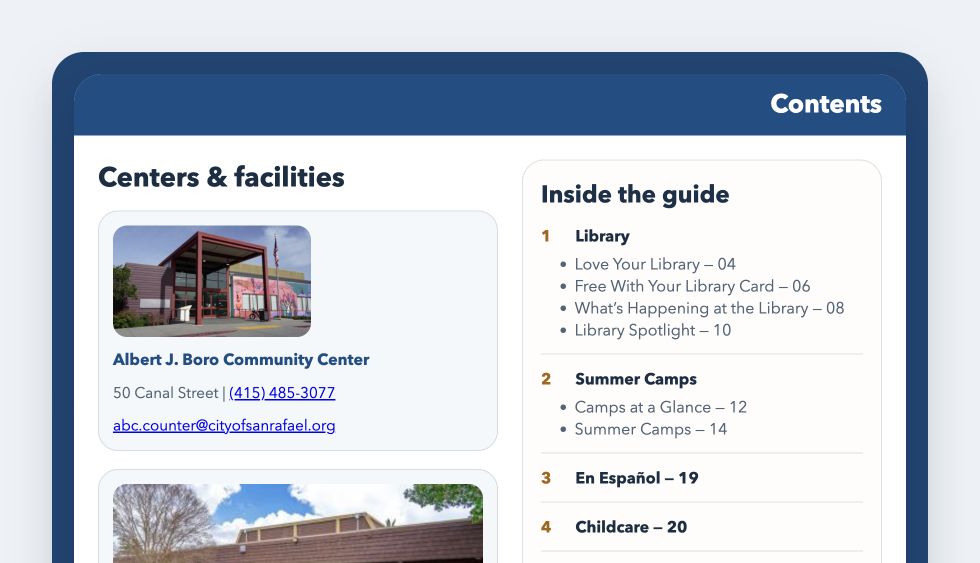
Explore a community guide with facility photos, useful links, and clear sections. Publish reviewed web content through your CMS.
Add a readable HTML version to a PDF managed in WordPress. Keep the original available for download.
Refine the HTML in FileToWeb Studio.
Create a draft WordPress Page for your team to review, revise, and publish.
Continue editing in WordPress.
We help you connect your CMS of choice through an API integration, HTML export, or a hosted FileToWeb page.
Editing depends on the publishing path.
Sync an existing WordPress document or use PDF-to-Page when you want an editable draft.
Compare it with the source and make changes in the appropriate editor.
Use FileToWeb's automated checks and human review. Recheck the final page in your WordPress theme, where navigation and surrounding content affect the experience.
Use the configured HTML integration or publish the reviewed draft through WordPress.
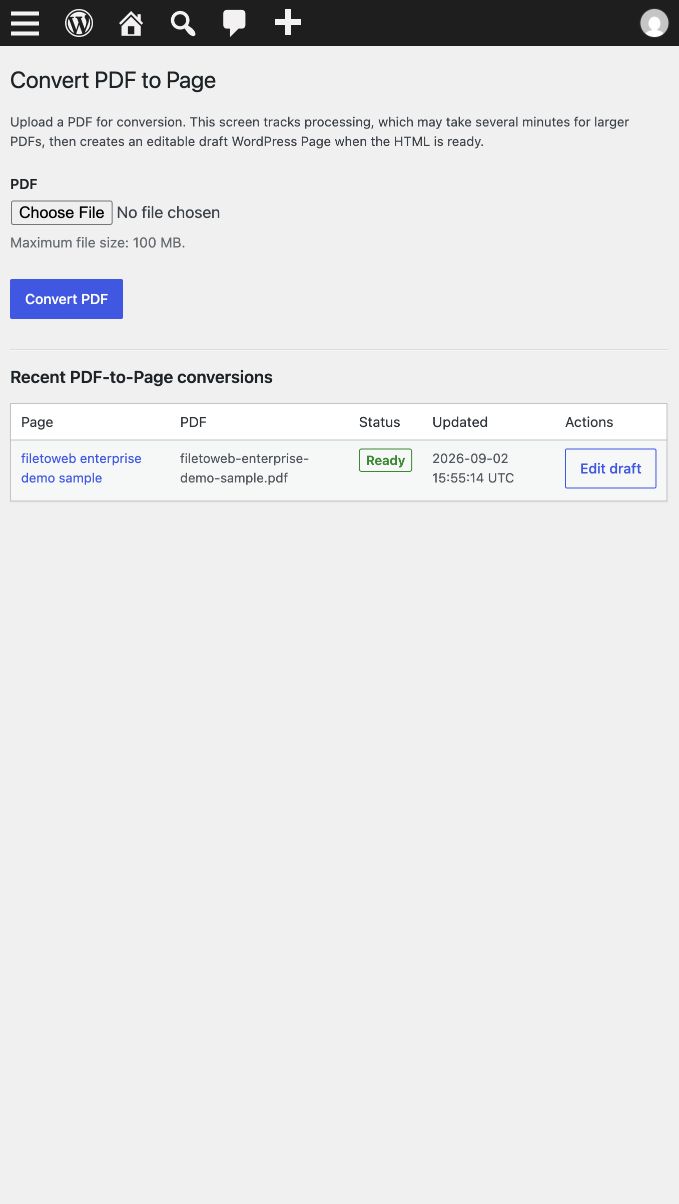
Your converted page is ready to review and edit in WordPress.
The reader experience
Give visitors content that reflows on phones, supports screen reader navigation, and helps them find what they need without downloading a file.
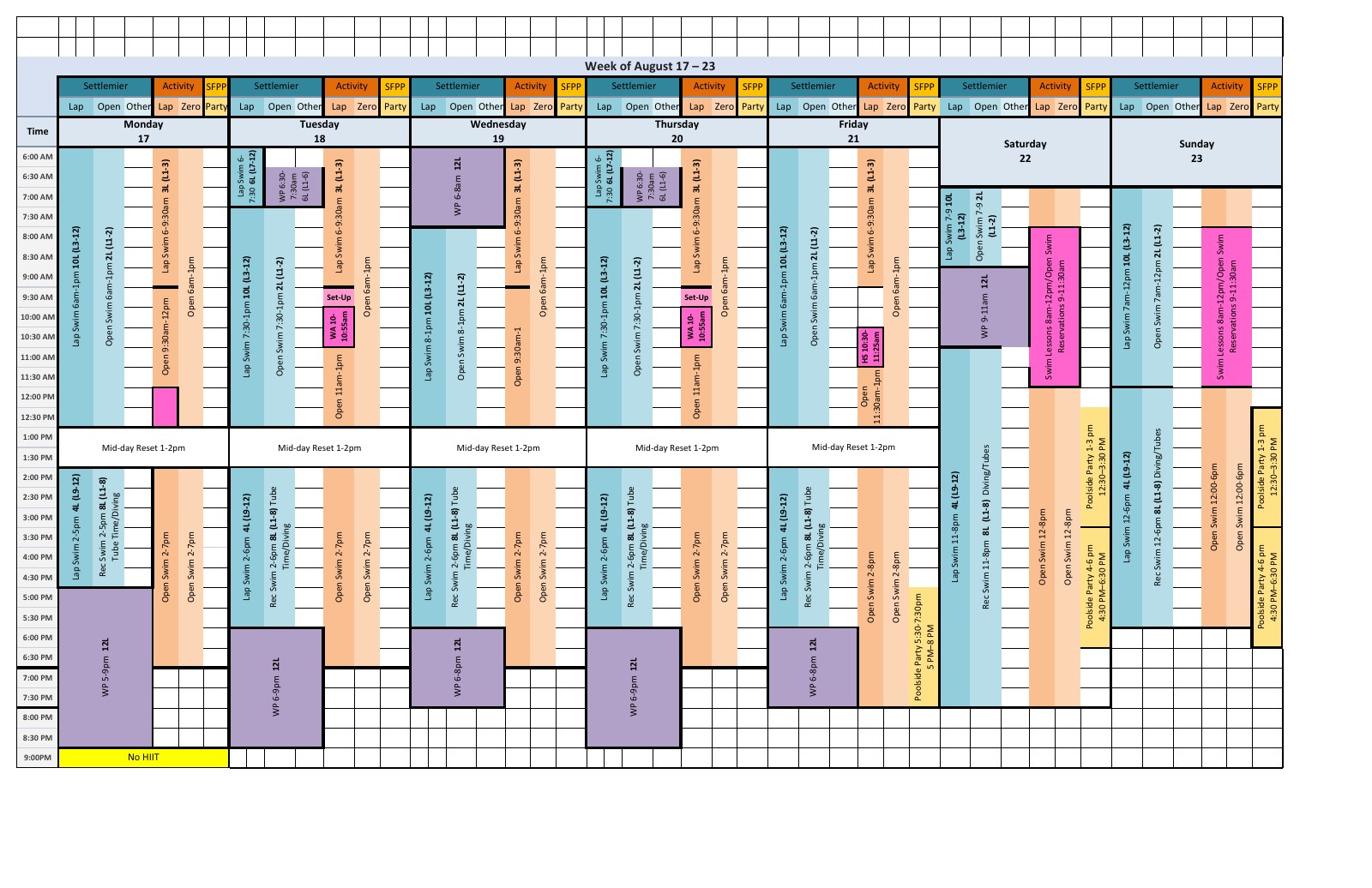
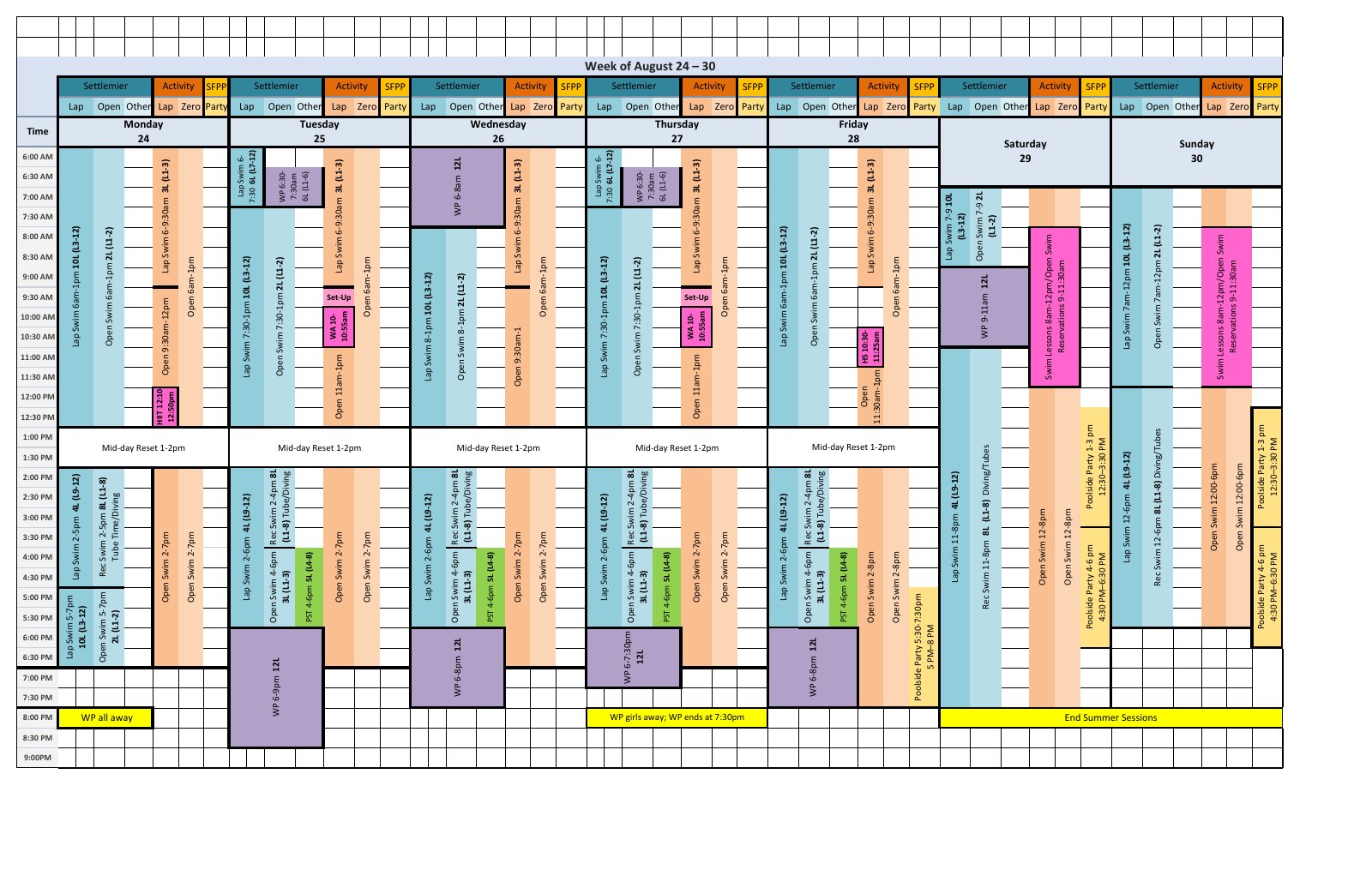
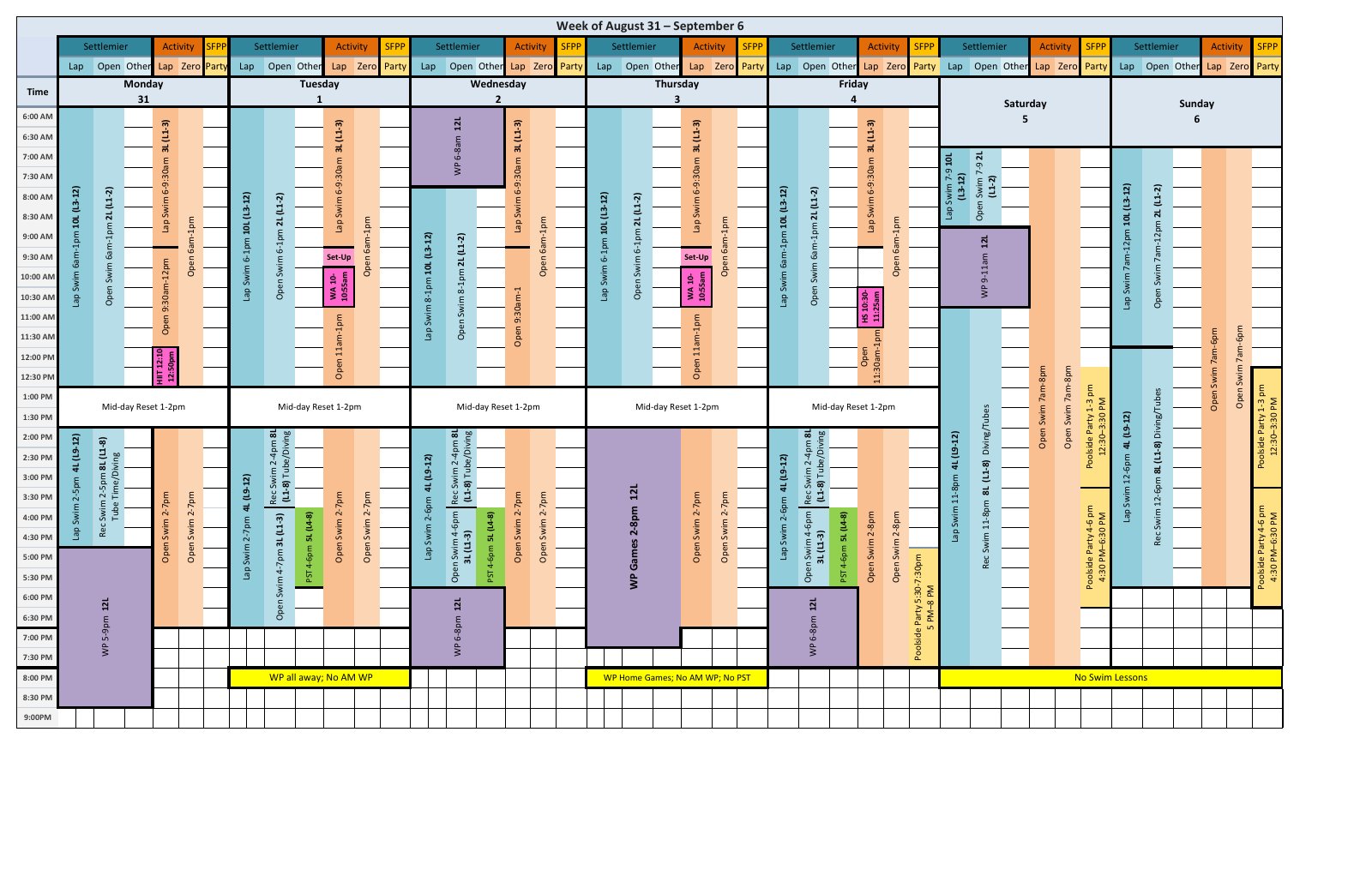
This pool schedule is a FileToWeb-hosted example of the reading experience.
Original PDF
 FileToWeb
Web page
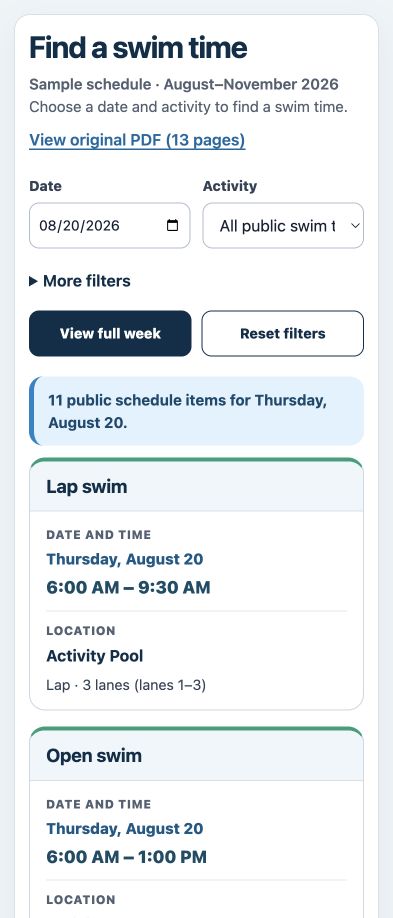
Create responsive, screen reader-friendly HTML, then use WCAG 2.2 AA checks and review workflows to improve headings, reading order, image descriptions, tables, and labels.
Human review and feedback from people with disabilities help identify barriers and support ongoing accessibility compliance. Review the published page in your CMS, including its theme and navigation.
Explore government document accessibility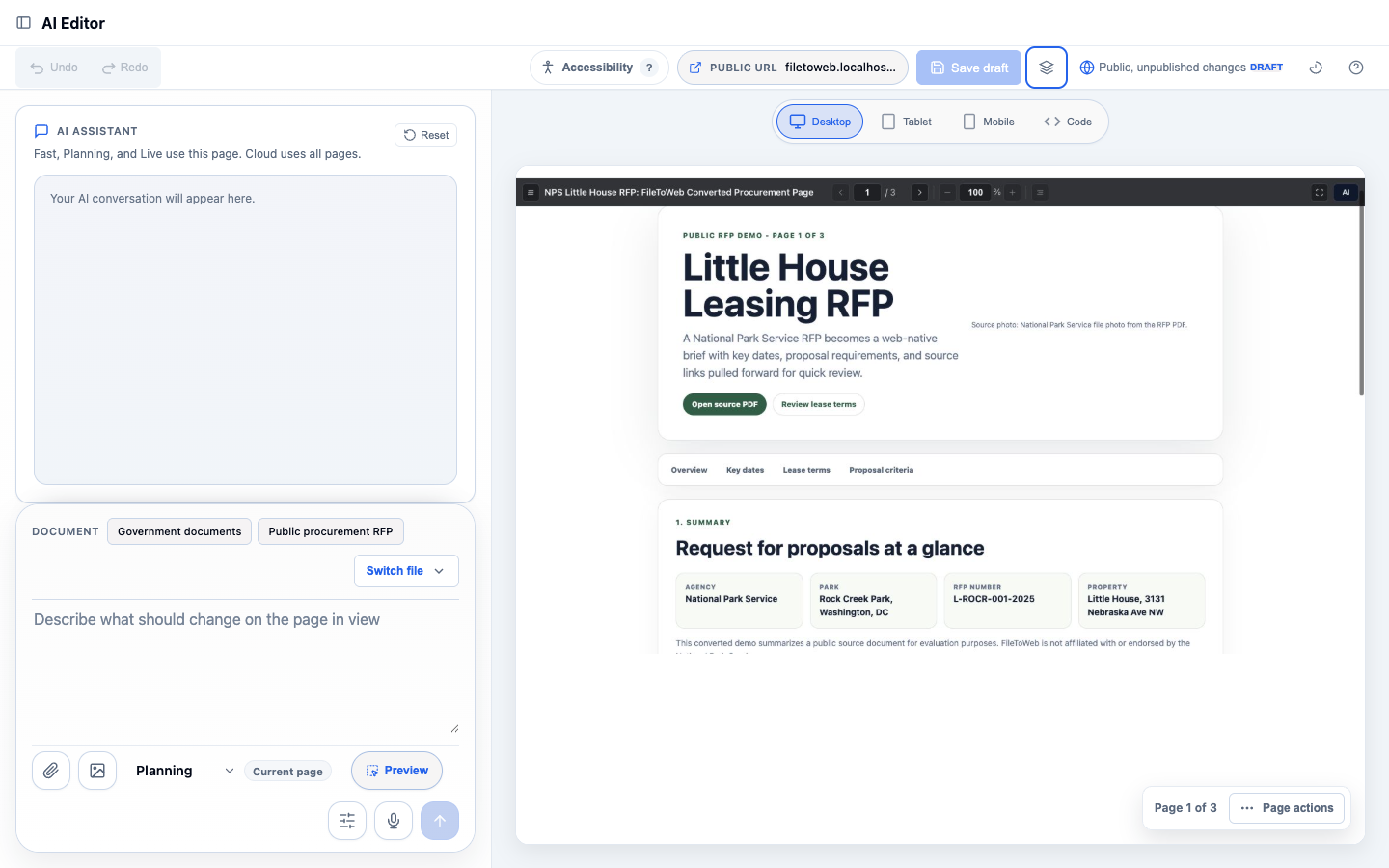
ProudCity
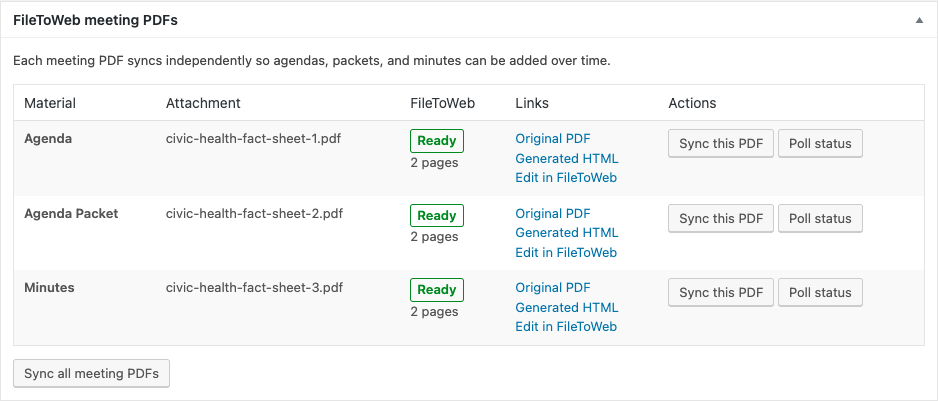
Test the publishing workflow with one representative document, then process batches. In ProudCity, manage agendas, packets, and minutes independently as new meeting materials arrive. Repeated syncs of an unchanged source avoid unnecessary duplicate conversions.
Help with your setup
Tell us what you want your visitors and editors to be able to do. We’ll help you work out the connection, review process, and first documents to publish.
Send your website, CMS, and a representative file or public document link.
Discuss HTML as the default, editable CMS pages, and any PDF downloads you want to keep.
Agree on requirements, responsibilities, and the scope of any integration work before it begins.
Integration services are scoped to your website and requirements.
Using Drupal or another platform? We can work with your team on an API connection, HTML export, or hosted publishing that fits your website and approval process.
Native support is currently available for WordPress and ProudCity. Other connections depend on the agreed scope.
Transparent pricing
Business includes 500 monthly credits, a shared team workspace, and the API access needed for CMS integrations. Try FileToWeb with 10 free credits before deciding on your setup.
Personal Pro plans start at $20/month. API access requires Business or an eligible Enterprise plan. Custom integration work is scoped separately.
For the WordPress plugin, you need permission to install and configure plugins, a FileToWeb team workspace with API access, and credits. Start with one representative document, review the public result, and then expand. We can help you plan the setup.
Yes. The existing-document integration retains the original PDF. You can make HTML the default reading experience and keep a PDF download for printing. PDF-to-Page creates a separate draft; keep the source PDF available if you want to offer it as a download.
Yes. Refine existing-document HTML in FileToWeb Studio, or create an unpublished WordPress Page and continue editing in WordPress. Your team decides when the new page is ready to publish.
After editing in FileToWeb, publish the changes and refresh the local WordPress copy. You can switch an individual document back to its PDF while refining its HTML. For draft WordPress Pages, continue making changes in WordPress.
FileToWeb helps you publish responsive HTML and improve it through WCAG 2.2 AA checks and review workflows. Human review and feedback from people with disabilities remain part of the process. Review the complete page in your CMS, including your theme, navigation, and any PDF downloads, against the requirements that apply to your organization.
Yes. We help you integrate with your CMS of choice. WordPress and ProudCity have native integrations; other platforms can use an API connection, HTML export, or hosted pages. We will work with your team to agree on the approach and scope.
Business plans start at $100/month and include 500 credits, a shared workspace, and API access. You can test FileToWeb with 10 free credits. Any custom setup or integration services are scoped separately based on your website and requirements.
Compatibility depends on the publishing path. We will confirm the supported setup for your editor; the optional Native Publisher currently includes a SiteOrigin-oriented workflow.
Bring accessible content to your website
Start with the files your visitors use most. We’ll help your team choose a publishing path and take the next step.